Pages

Books We Are Reading In Class

Eastwood Public School

Windsor, Ontario, Canada

Global Read Aloud

We will be participating in the Global Read Aloud Project. We will be reading Marty Mcguire in the month of October and connecting with other classes about the book.

Primary Blogging Community

Each primary classroom will spend some time visiting the focus class' blog for a week, leave comments etc.

Class Wordle

We used Wordle to describe our classroom.

Tuesday, September 4, 2012

First Day of School!

We had a very fun and exciting first day back to school today!  We started the day with a cute clip from the movie "Finding Nemo".
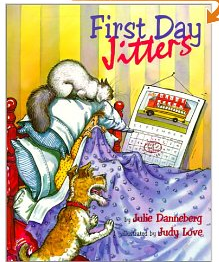
We talked about how many of us were very excited about school and couldn't sleep very well last night (me included).  We also talked about how a lot of us were feeling a little bit nervous about our first day back.  This discussion led us into our next activity.  We talked about the "First Day Jitters" and what other things gave us the jitters.  We then read the book:

We read a cute poem about Jitter Juice. (If you drink jitter juice, it will take the butterflies in your tummy away).  We then made Jitter Juice together and drank our jitters away!  We also wrote down the ingredients to our jitter juice and drew a picture so we could remember the secret recipe if we needed to make it at home.


Another activity we did today, was we talked about one thing that we wanted to share with the class about our summer vacation.  We shared our stories with a partner and then were given an index card to write and or draw that one experience we had in the summer.  The students were then given an iPad to tweet their experience on Twitter.  Our class Twitter account is @Mrswideensclass if you are interested in following us.  Here are some of our tweets from today.


In the afternoon we began talking about Math Stations and we had some exploration time with the math manipulatives. While the students were at the stations I asked them to brainstorm ways they could use the manipulatives during math and write or draw their ideas on the chart paper at their station. The students came up with some great ideas!

 As you can see, we had a very busy day! I can't wait to see you all tomorrow!

Sunday, September 2, 2012

How To Set Up A Primary Paperless Classroom Using iPads

As I said in my previous post, my husband @mrwideen and I have figured out a way to send assignments, worksheets and activities to my grade 1 and 2 students using the iPads without having to sign my students up for email addresses or by using an exterior community website like Edmodo.  The following is a step by step tutorial of how we set up my classroom:

1.  Sign up for a classroom Dropbox account.  After signing up for Dropbox, create a folder for each one of your students.  Download the Dropbox app onto each student iPad.  Log onto the classroom account on each student iPad.

Screen shot of dropbox with my students' files.
2.  Download the iPad app Remarks on all of your student iPads. Remarks is a PDF annotating application.  The app allows users to highlight, underline, strikeout and draw upon documents.  This means your students can write on any PDF that you send them via Dropbox.

3. Open Remarks app, click on network on the bottom of the screen.


4. After clicking on Network, add your Dropbox account.


5.  Once you have added your dropbox account to the Remarks app, click on your Dropbox account that was just created.  For example, I've used my first and last name for my account.


6.  After clicking on your Dropbox account, all of your student folders that you created will pop up.


7. To place assignments into your students' folders, you need to save the assignment as a PDF.   Save a copy of the PDF in each of the students' folders in Dropbox.   For example, I have clicked on the Mrs. Wideen folder.  As you can see the PDF (Jitter Juice Poem) was saved in the folder.


8.  Click on the PDF/assignment.  The note will download and appear on your screen as shown.


9.  Students can use their finger, stylist or use the built in iPad keyboard to annotate.


10.  When students complete their assignment, have students first click on the share icon.  A box will appear with different choices.  Have your students choose the "Upload Note" option.


11.  Have your students' choose the classroom Dropbox account.


12.  After choosing the classroom Dropbox account, have students choose their own name.


13.  Click upload.


14.  Click replace, so the finished assignment is replacing the original document in the folder.


15.  You are done!  The completed work is in each of your students' folders for you to assess.  You also have a ready made portfolio for you, documenting all of your students' work!

If you are thinking that it would take too long to save the original PDF in each child's folder (#7).   I do have a solution for that, if you use a Mac computer.  However, you will have to wait for my next blog post to find out.

Saturday, September 1, 2012

The Primary Paperless Classroom

A new school year brings new aspirations, my hope this year is to become a paperless classroom.  Well, not completely paperless.  Let's face it, in a primary classroom, children need manipulatives and they need tactile stimulation.  However, I want to use less paper in my room.  Students can record their learning in many different ways other than pencil and paper.  Last year, my students showed me many different ways they could record their learning.  A few of my favorites were:  wallwisher.com as a substitute for sticky notes.  It's a great tool for brainstorming or for showing learning.  Another favourite  is the Show Me app where students can draw and record themselves explaining their learning.  One of my new favourites for recording student learning is Creating movies with the iMovie app.
These are all great tools, but I wanted to try something new, I wanted to take it one step farther and have my students use the iPads like notebooks.  I wanted to be able to share worksheets, documents and assignments with my students through the iPads.
Many classrooms are paperless classrooms, however when I searched for primary paperless classrooms, mainly grade one and two classrooms, I couldn't find any.  It is difficult to find primary paperless classrooms because for the most part, many or all of these children do not have email addresses to share documents.
I searched and searched for a way to make this a reality.  I asked my PLN for help, unfortunately I came up empty handed.  Until, I put my husband @MrWideen on the case.  It didn't take him long to figure out a way to send out documents to my grade 1/2 students' iPads without them having email addresses and it being easy enough for 20 six and seven years to accomplish with a little practice.  Stay tuned for my next blog post to see how we did it.

Saturday, July 21, 2012

Finding Balance

It's finally Summer Break and when I am unsure what day of the week it is, I know I am in summer mode!  My husband (who is also a teacher) and I have been off since July first and we have tried to put our school stuff on the back burner to spend quality time  with our two children ages two and five.  My husband and I are both very hard working teachers and both have an online presence, writing on our blogs and connecting through twitter during the school year.  With two small children, I constantly struggle to find balance between work and home.  I feel guilty during the year for not spending more time with my children.  During the Summer, I feel guilty not writing on my blog or continuing my conversations and networking through twitter.  I have actually had messages from other teachers wondering where I am and if I'm okay. (This is my first blog post in over a month)  To them, I tell them that I am spending quality time with my little ones and my husband.  How do I find a happy balance?  I worked harder this past school year than any other year of my career.  In return for my hard work, I had the most rewarding and enjoyable year of my career.  I had many firsts this year.  My students and I used twitter, we collaborated with other classes around the world through Skype and google hangout.  I  now have an amazing PLN that I learn from daily, we started with zero iPads in our class, and for the first time, I wrote an iPad proposal with my team teacher and we were granted twenty iPads.  At the beginning of the school year almost 40% of my students were below benchmark for reading and at the end of the year only 2 in my class were.  I want another school year like the one I had this year, but how do I do it without losing precious time with my family?  I know the expression, don't work harder, work smarter.  How can I work smarter this year?  I have so many more things I want to try and learn about to implement in my classroom.  How do you find balance with work and family?

Monday, June 11, 2012

Using Wall Wisher on The iPads

I am so excited about what we did today using the iPads! My students and I use a lot of sticky notes everyday.  I mean A LOT!  My students always have a sticky note or two when I'm reading a book to write down questions, write a word down they don't understand or an interesting fact that they learned.  I also use them for making predictions, brainstorming and tickets out the door.  The sticky notes were getting out of control in my classroom!  They are and still will be a valuable tool for my students, however we wanted to be more environmentally friendly, which led me to my online search for an application that I  can do all of these things using the 20 iPads we currently have instead of always using sticky notes.  I needed a site or app that the students didn't need to sign in or use an email account because I have grade 1, so I needed something easy to use.  I tried many and put it out on twitter to see if anyone had an answer for me.  ‏Kristen Ziembe from @1stgradethinks mentioned that they use Wallwisher with their iPads so I created a wall, chose an icon to put on the iPads with the link to the wall (Thank you to K. Lirenman @lirenmanLearns for the help) and we were ready to try it out.  We were meeting up with our grade 7/8 reading and writing buddies today so I thought it would be a great opportunity to try it out.  I posted the question, "Why should we continue to have reading buddies this year?"  The students responded on the iPads their thoughts and I also had it posted on the smart board .  This was very easy to set up and for my students to use.  It worked out wonderfully!   I was so impressed on how well my students responded.  I can't wait to use again. This is how it turned out:


Using QR Codes With Grade 1 Students

We have been using QR codes in our math stations for quite some time.  I have always used QR math stations that were already made.  If you want to try QR codes in the classroom, try www.teacherspayteachers.com. Just type in QR codes and some will pop up that you can download.  You will need a device to scan the codes with.  We use the free Qrafter QR code reader app for the iPad.  My grade 1 students love when I hide the QR codes around the room and they have to find them.  We have used QR codes for addition, subtraction and word problems.  I wanted to try to make my own QR code literacy station.  My students have a Read and Write the Room station every week during literacy.  We have been learning about insects the past couple of weeks so I wanted to use this station to ask questions about insects and for them to record their answers.  First, I searched the internet for free QR code creators.  There were many out there to choose from.  Secondly, I thought of 10 questions for the students to answer by scanning the QR code hidden somewhere in the classroom (it's always more fun when you have to find the code).  I asked questions like, "How many body parts does an insect have?" and "Name an insect that is a carnivore." Next, I printed the codes that I created.  Then, I made a recording sheet  for the students to print their answers.  Lastly, I hid the codes around the room for the students to find.  I even created an extra QR code for when they completed the station.  They are able to scan the final code to find out that they may play one of the insect apps we have downloaded on the iPad.  I was very pleasantly surprised how easy it was to create.  I encourage you to try it in your class, and if you have, please let me know how you have used it.  I am always looking for new ideas!
Student Recording Sheet

The first 4 QR codes I made.

Tuesday, May 29, 2012

Spiders Are Not Insects iPad Project

This week we have been learning about Insects.  Students have been reading books about insects, writing interesting facts about insects and going outside to hunt for insects!  Students have been going outside with our volunteer Mr. Froze and the iPads to take pictures of insects.
Mr. Froze with a group of students hunting for insects.
Students' used Skitch to label their insect.
The students have found many interesting insects right in our own school yard. However, if students could not find any insects, I taught them how to go online, search for insect images and take screen shots.  Students then have to open up Skitch on the iPad and label their insects.

When students have finished labeling their insects they have to create an insect book using the Book Creator App and their labeled insect pictures.  We didn't stop there, students also had to write a sentence to go along with their picture and record themselves reading their sentence.
Picture from the Book Creator App.

Students' projects will be marked according to following criteria created by the students and myself.

I love how we have extended our learning of insects using the iPads.  I love all the games you can use and play on the iPads, however using Apps like, Skitch and Book Creator for projects like this help the students develop a deep understanding of the material and information presented by collaborating with their classmates that might be less confident to share their knowledge in front of the class.  Not to mention that is is a fantastic piece of authentic assessment!  I would love to hear how you are using iPads to extend and enrich the learning in your classroom.